Goals, Alerts & Workspaces
Track conversion milestones, get notified when traffic drops, share public dashboard links, and manage team access across workspaces.
1. Conversion Goals
Define conversion targets in Project Settings → Goals to track key milestones on your site.
Types of Goals
- Page Visit Goal — triggers when a visitor views a designated URL path (e.g.
/thank-you,/welcome,/docs/getting-started). - Custom Event Goal — triggers when a named custom event fires (e.g.
signup_completed,newsletter_subscribed).
Goal Metrics
Each goal tracks:
- Unique Conversions — distinct sessions that reached the milestone.
- Conversion Rate — percentage of total sessions in the selected date range that achieved the goal.
2. Webhook Alerts
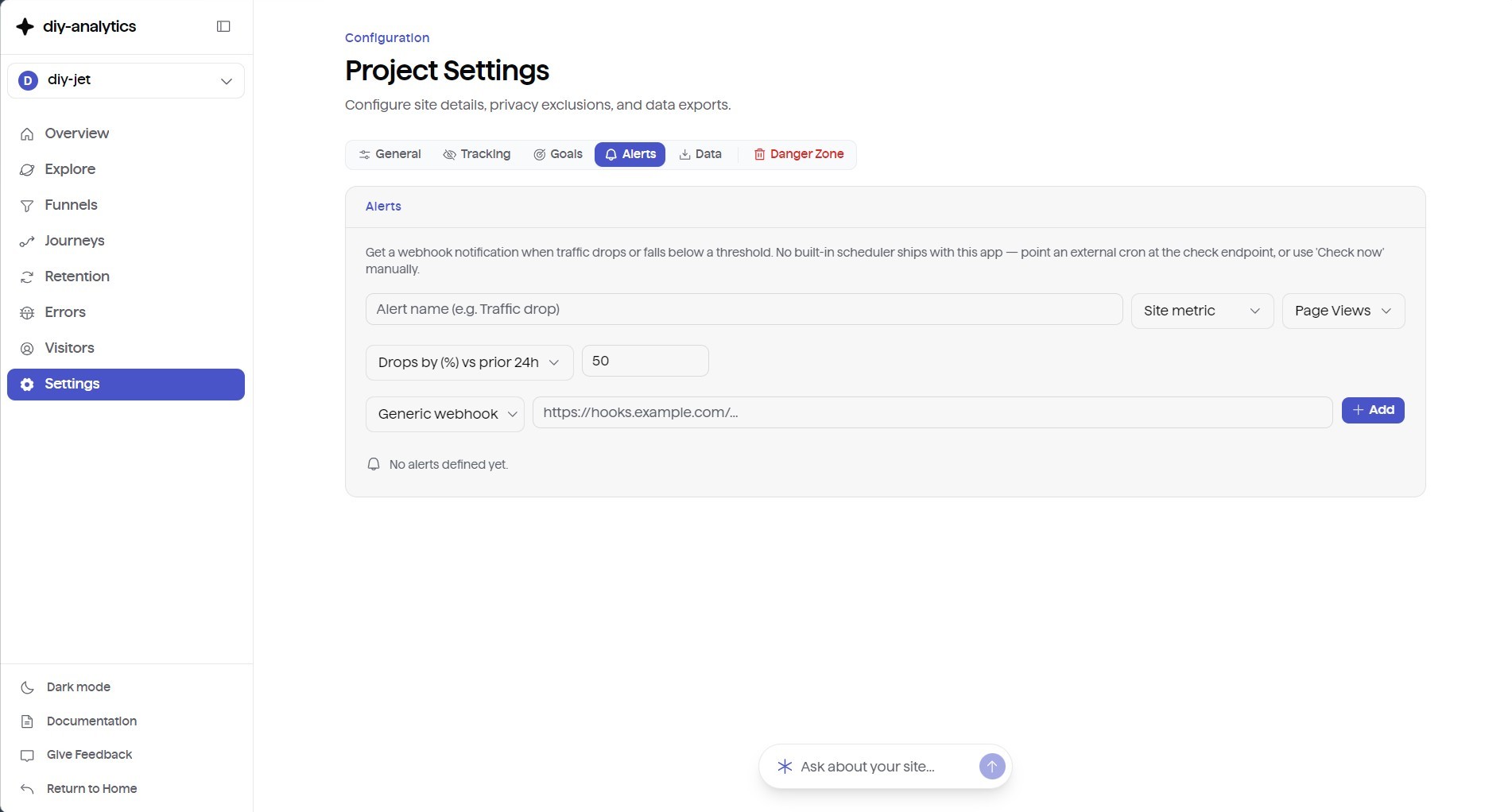
Set up monitoring in Project Settings → Alerts to get notified via webhook (Slack, Discord, or a custom endpoint) when metrics breach a threshold.
Alert Triggers
- Percentage Drop Alert — triggers if pageviews, sessions, or unique visitors drop by more than a specified percentage (e.g. 30%) against the prior 24-hour baseline.
- Absolute Threshold Alert — triggers if traffic falls below a minimum number of events during peak hours.
Webhook Payload Example
When an alert triggers, diy-analytics sends a POST request with this JSON body:
3. Public Dashboards
Share your analytics with investors, community members, or customers without requiring a login.
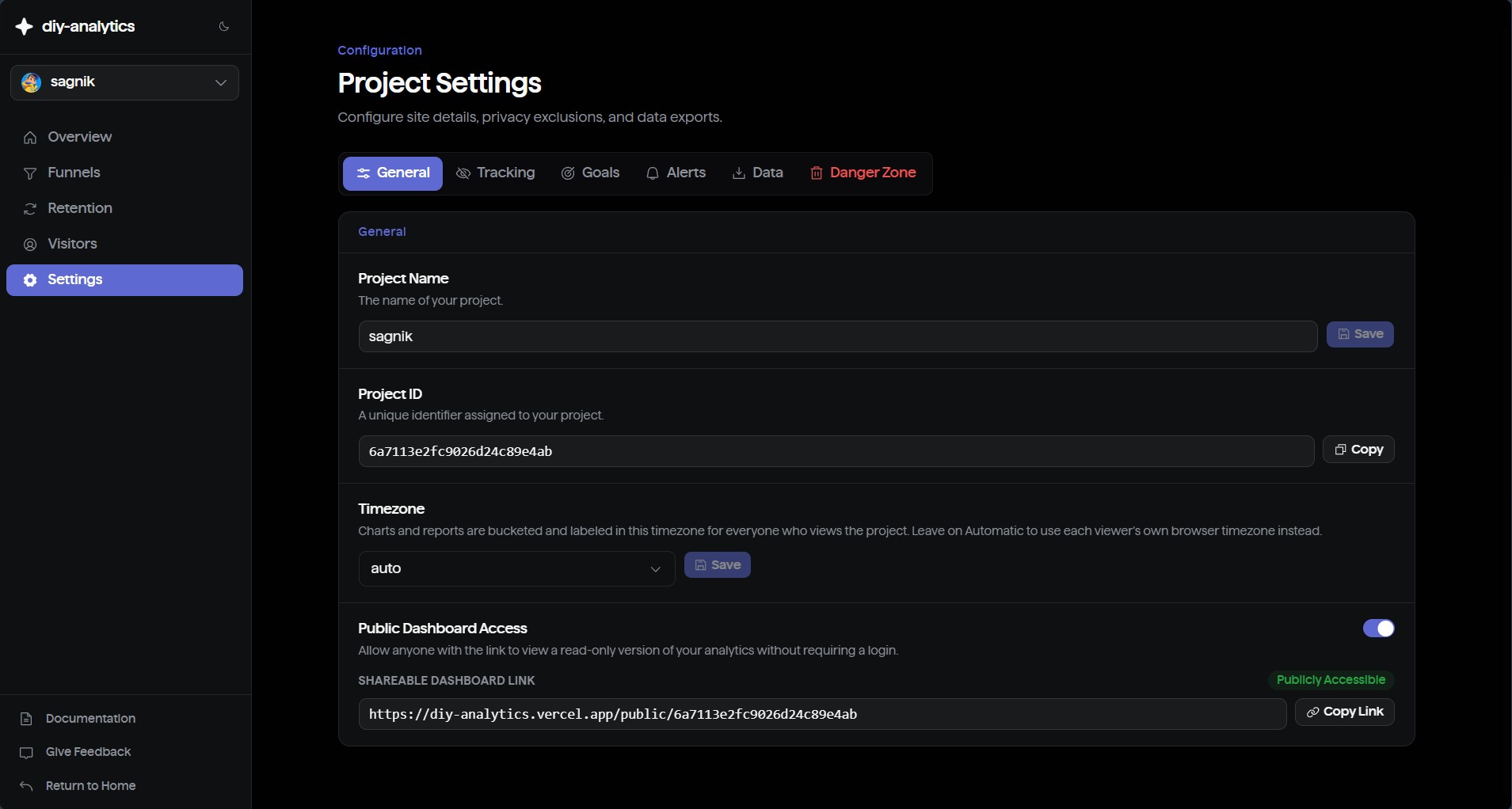
- Go to Project Settings → General.
- Toggle Public Dashboard Access on.
- Copy your public URL:
https://analytics.yourdomain.com/public/<projectId>
Public viewers get a fast, read-only view of your main metrics, charts, and breakdowns. Configuration, alerts, and API keys stay private.
Anyone with the public URL can view the dashboard — there's no access control beyond the link itself. Don't enable this for projects with sensitive traffic data.
4. Multi-Tenant Workspaces & Team Roles
A Workspace groups related projects, teammates, and shared billing or storage quotas.
Workspace Permissions Matrix
| Role | View Analytics | Create & Edit Projects | Invite & Manage Members | Delete Workspace |
|---|---|---|---|---|
| Viewer | Yes | No | No | No |
| Member | Yes | Yes | No | No |
| Admin | Yes | Yes | Yes | No |
| Owner | Yes | Yes | Yes | Yes |
5. Raw Data Export (CSV)
Export complete, unaggregated telemetry for offline analysis, backups, or custom data science workflows.
- Go to Project Settings → Data.
- Click Export All Data.
- Download a
.csvarchive containing every raw pageview, custom event payload, UTM tag, referrer, and device breakdown.